
Connection Problems with SinoTrack Platforms: Causes and Solutions
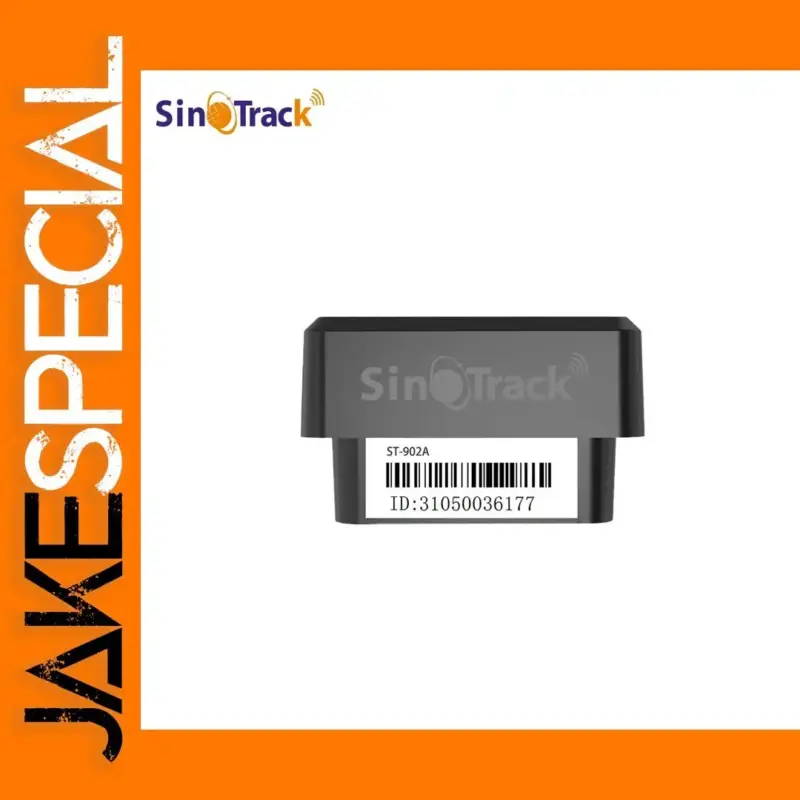
Following a recent customer request about a sudden login failure with a SinoTrack GPS tracker, we prepared this comprehensive guide. The goal is to help any SinoTrack user quickly diagnose and resolve “ID or password incorrect” errors on the SinoTrack Pro app or the web portal—without replacing the device.
Who This Guide Is For
Owners of SinoTrack GPS trackers (including ST‑902A, ST‑901, ST‑907, etc.) who can’t log in to the SinoTrack platform, even though they have been using their tracker regularly and haven’t changed their credentials.
Typical Symptoms
Common Error Messages
“ID or password is incorrect” or “Incorrect username/password” at login—on mobile (SinoTrack Pro) or the official web portal.
What Still Works vs. What Fails
- SMS commands to the device may still work (positions via SMS, configuration replies).
- App/web login fails despite entering the correct device ID and a known password (often the default 123456).
Quick‑Fix Checklist (TL;DR)
- Select the correct server: on the login screen, manually choose VIP.Sinotrack (do not use Auto Select).
- Confirm credentials: username = your device ID; password is typically 123456 unless you changed it.
- Update/reinstall the app: install the latest SinoTrack Pro, then re‑select the server and log in.
- If still blocked: ask SinoTrack to verify/reactivate your device ID on their server.
- Advanced (if needed): verify the tracker’s GPRS config via SMS (APN, server, port) so it can talk to the current platform.
Main Root Causes
1) Wrong Server Selected (Most Common)
SinoTrack operates multiple backend servers (SinoTrack / SinoTracking / SinoTracker / SinoTrackPro / VIP SinoTrack). If your app is pointing to the wrong one—especially after an update—your correct ID/password may still be rejected. Selecting VIP.Sinotrack resolves most cases instantly.
2) Platform‑Side Issue with Device ID (Deactivated/Unrecognized)
Occasionally, a device ID can be temporarily unrecognized on the platform. In such cases SinoTrack support needs to check and reactivate/validate your ID on their side.
3) Outdated App Version or Corrupted App Cache
Old app builds or corrupted cache/data can cause login issues. A clean reinstall often fixes mismatched server routing or stale tokens.
4) Credential Confusion (Login Password vs. SMS Password)
The platform login password is typically 123456. This is different from the SMS command password some models print on the label (e.g., 0000/1234). Using the SMS password at platform login will fail.
5) Advanced: Device Offline or Misconfigured (APN/Server/Port)
If the tracker cannot reach the platform (wrong APN, old server address/port), the web/app may appear to “reject” you while the real issue is that the device isn’t communicating with the current server.
6) SIM/Data Plan or Network Restrictions
Insufficient data credit, blocked M2M traffic, or roaming restrictions can silently break connectivity. Ensure the SIM plan supports data where the device operates.
Step‑by‑Step Solutions
1) Select the Correct Server: “VIP.Sinotrack”
Android/iOS: Where to Change the Server in SinoTrack Pro
On the login screen of SinoTrack Pro, open the server selector and choose VIP.Sinotrack. Avoid “Auto Select” if you’re troubleshooting.
Web Portal: Selecting the Correct Server at Login
If using the web portal, make sure the server choice matches VIP.Sinotrack before entering your credentials.
How to Verify You Are on the Right Server
- After switching to VIP.Sinotrack, try logging in again with your device ID + 123456.
- If it works immediately, the server mismatch was the root cause.
2) Confirm Credentials
Default Login (Username = Device ID, Password = 123456)
Your username is the device’s ID printed on the tracker. The initial platform password is typically 123456 (unless you changed it previously).
Difference Between Login Password and SMS Command Password
Do not use the SMS command password at platform login. They are distinct.
How to Change or Reset the Login Password
If you changed the platform password and forgot it, request a reset from SinoTrack support (provide your device ID and proof of purchase if needed).
3) Update or Reinstall the App
Clean Reinstall Procedure
- Uninstall SinoTrack Pro.
- Reboot your phone (optional but recommended).
- Install the latest SinoTrack Pro from an official store.
- On first launch, manually choose VIP.Sinotrack at the login screen.
Post‑Install Checklist (Server Selection + Test Login)
- Verify server = VIP.Sinotrack.
- Login with device ID + 123456.
- If successful, you can change the password afterward in‑app.
4) Ask SinoTrack to Reactivate or Validate Your Device ID
Information to Provide (ID, Proof of Purchase, Email)
Provide: your device ID, purchase details (order number or receipt), and the email/phone to link if they add your device to a user account.
Contact Template for SinoTrack Support
Subject: “Device ID Login Issue – Reactivation Request”
Hello SinoTrack Team,
I am unable to log in with my tracker. My device ID is [YOUR_ID]. I am selecting the server “VIP.Sinotrack” and using the default password 123456 (or my known password), but the platform says the ID/password is incorrect. Could you please verify and reactivate my device ID on your server? I can provide proof of purchase if needed. Thank you.
Expected Response Times and Next Steps
Once SinoTrack confirms/reactivates your ID, retry login on VIP.Sinotrack. If it still fails, proceed to the advanced checks below.
5) Advanced: Ensure the Tracker Is Sending Data
Check Current Config via SMS (RCONF)
Send the configuration inquiry command (often documented as RCONF) to the SIM number in the tracker. The device should reply with APN, server, and port settings.
Set APN via SMS
If the APN is missing/incorrect for your SIM provider, send the APN setup command (syntax varies by model/carrier; consult your manual/SIM provider). Example concept: set APN name (and user/pass if required), then reboot the device or re‑enable GPRS.
Point the Device to the Current Server via SMS (Server/Port Command)
If the device is still pointing at an old server, send the server/port command (often referred to as the “804” server command in SinoTrack manuals) to target the current platform (e.g., vip.sinotrack.com on the proper port). If you’re unsure of the exact syntax/port for your model, ask SinoTrack support for the precise command.
When to Contact Your SIM Provider
If you receive no replies to SMS commands, or data sessions fail, contact the SIM provider to confirm data credit, APN correctness, and that M2M data/roaming are enabled.
Troubleshooting Matrix
Scenario → Likely Cause → Recommended Fix
- Login error after app update → App defaulted to the wrong server → Manually choose VIP.Sinotrack, then log in.
- Using device ID + 123456 but still blocked → ID not recognized on platform → Ask SinoTrack to verify/reactivate your ID.
- App won’t log in; SMS replies work → Device isn’t talking to current server → Check RCONF/APN/server/port; update server via SMS.
- No SMS replies from device → SIM/data issue or device powered off/out of coverage → Check SIM credit, APN, power, antenna, and try again.
- Forgot changed login password → Password reset needed → Request reset from SinoTrack support.
Frequently Asked Questions (FAQ)
What is the difference between “VIP.Sinotrack” and other servers?
They are distinct backends. Your device ID is recognized on specific servers. When in doubt, choose VIP.Sinotrack.
Can I manage multiple trackers under one login?
Yes—SinoTrack can associate multiple devices to a single account. Provide your IDs to support if you need consolidation.
How do I know if my ID was deactivated?
If correct server + correct password still fail, ask SinoTrack to verify your ID status. They can reactivate it if needed.
Can I use an alternative platform temporarily?
Yes (advanced users). Some third‑party platforms support SinoTrack protocols if you point the device to their server/port via SMS. Use this as a temporary workaround if needed.
What if I forgot my login password?
Contact SinoTrack support to reset it. Provide your device ID and proof of ownership.
Security and Privacy Considerations
Protecting Your Login and Device ID
Do not share your device ID/password publicly. Change the default password once you regain access.
Sharing Access Safely
If someone else needs access (family, fleet manager), prefer adding them as an authorized user rather than sharing your primary credentials.
When Replacement Makes Sense
Decision Criteria Before Replacing the Device
- You confirmed server = VIP.Sinotrack, credentials are correct, and app is up to date.
- SinoTrack support verified/reactivated your ID.
- SMS diagnostics (RCONF/APN/server/port) are correct, and SIM data is working.
If all the above checks out and the device still cannot be used, consider replacement.
Contact & Support
What to Prepare Before Opening a Ticket
- Device ID (printed on the tracker).
- App version and platform (Android/iOS) or web portal details.
- Proof of purchase (order number, date).
- Summary of steps already tried (server selection, reinstall, SMS config checks).
Escalation Path if the Issue Persists
Contact SinoTrack support with the above information. If the issue remains unresolved after ID validation and configuration checks, request an explicit confirmation of ID status and the correct server/port for your model. As a last resort, consider a replacement device.
Changelog for This Guide
v1.0 — Initial publication with end‑to‑end troubleshooting steps (server selection, credentials, app reinstall, ID reactivation, advanced SMS checks).

